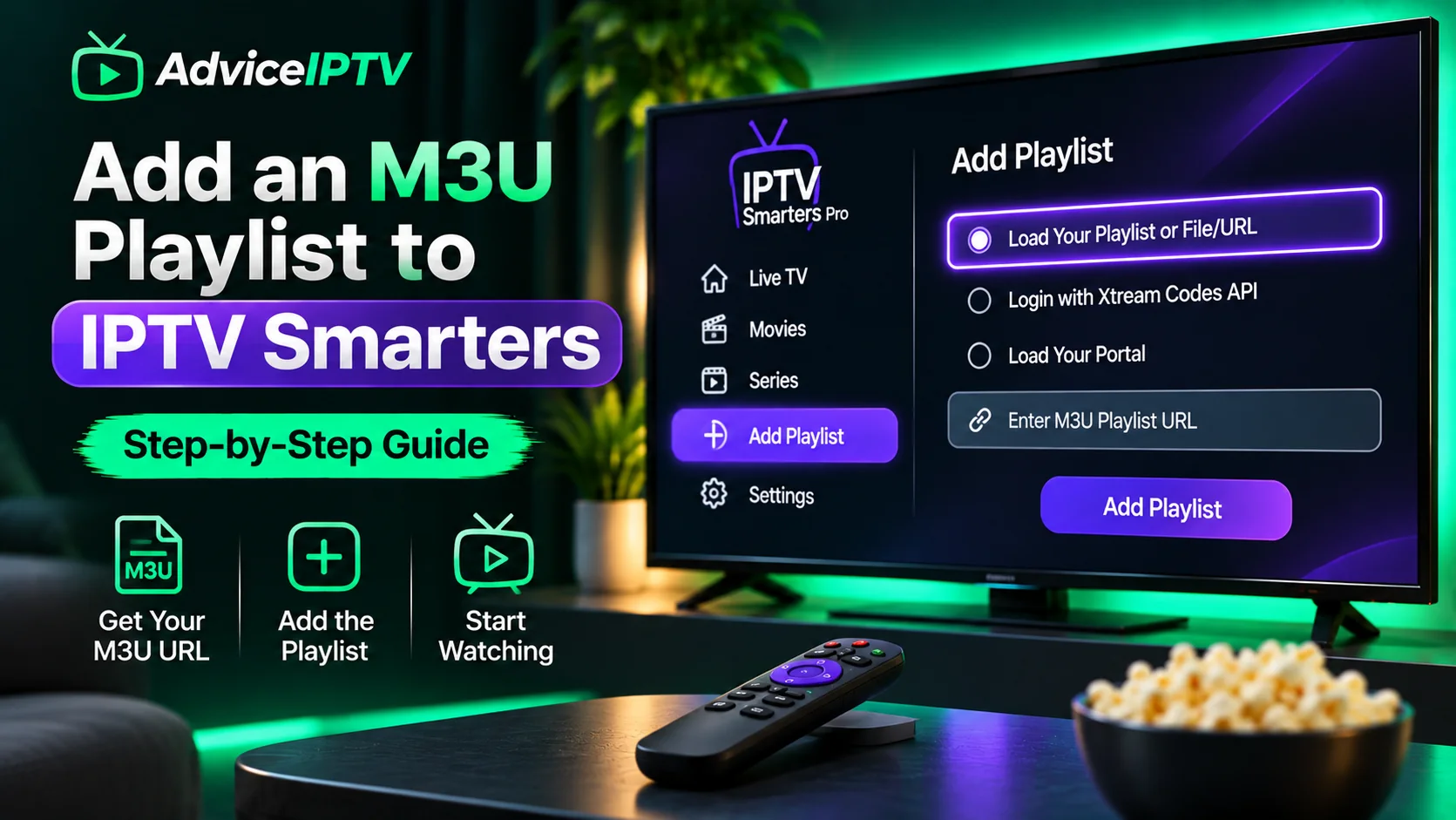
IPTV Smarters is one of the most widely installed IPTV players. It is worth being clear about what it is before you set it up: a player, not a service. The app plays the channels your provider gives you, and it organises them into a guide. If the channels do not appear, the problem is almost always the details you entered, not the app. This guide covers the three sign-in types, how to load the guide, and what the common error states mean.
What the app does, and what your provider does
Your provider supplies the channels and the login details. IPTV Smarters takes those details and displays the content. When something goes wrong, it helps to ask which side failed. If the app cannot reach the server or rejects the login, check the details. If the channels load but the picture stalls, the cause is usually the connection or the stream, and the buffering guide covers that. For background on how the parts fit together, see what IPTV is.
Install by platform
The install route depends on your device:
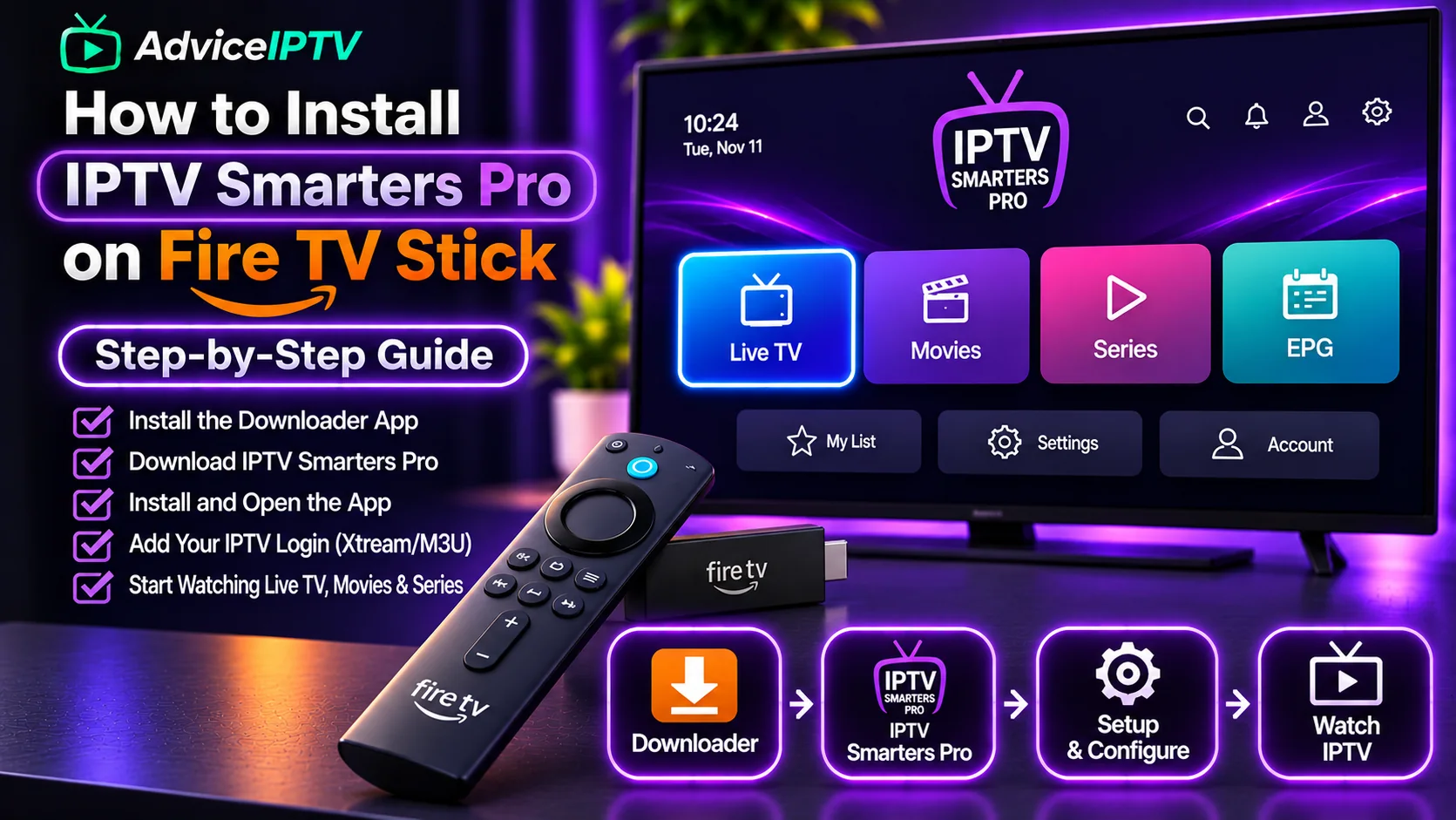
- Fire TV and Android TV. Install from the app store if the listing is available, or sideload the official APK. The Fire TV guide and the Android TV guide cover the steps.
- iOS, Windows and Mac. Use the platform listing or the developer’s official download. The developer’s site lists the current desktop and mobile versions.
- Smart TVs. Availability depends on the television’s platform. The Smart TV guide covers the options.
Whatever the device, download the app only from the developer’s official site or a store listing you have checked. Copies on file lockers and forums are a common source of malware.
Three ways to sign in
Choose the option your provider’s details match. The table below shows which fields each option needs and what breaks when you pick the wrong one.
| Sign-in type | What you need | Pick it when | What breaks if it is wrong |
|---|---|---|---|
| Xtream Codes | Server address, username, password | You were given a server, a username and a password | Entering the whole address in the username field, or leaving the server blank |
| M3U URL | One playlist link | You were given a single playlist link | Adding a username and password that the link does not need |
| Portal and MAC | Portal address and device ID | You were given a portal address and a device ID | A device ID that is not registered with the provider |
If you are unsure, check the message your provider sent you. The field names there are usually the same as the options above. The Xtream Codes explainer explains the first option in more detail, and the M3U playlist guide explains the second.
Load the guide
After sign-in, the channels load first. The guide is a separate step. Give the app a few minutes, then check the schedule. If the guide stays empty:
- Confirm the channel list has loaded. An empty channel list is a login problem, not a guide problem.
- Find the guide or EPG setting and check that a guide source is set.
- Refresh the guide once and wait.
For more on why the guide is empty, see the EPG guide.
Error states and what they mean
The app shows several kinds of error. Each points to a different cause:
- Failed to authorise. The provider did not accept the login. Check the sign-in type and re-enter the details exactly. The failed to authorise guide covers the causes in order.
- Playlist cannot be loaded. The link or server address is wrong, or the server is unreachable. Check the address for typing errors.
- Channels load, but a channel will not play. That single channel may be offline at the source. Test another channel before changing settings.
- Guide is empty. See the section above.
Settings worth changing on a low-memory device
On a box with limited memory, make these changes before anything else:
- Reduce the number of guide sources, and refresh the guide less often.
- Hide the channel groups you never watch, so the app loads a shorter list.
- Turn off background updates you do not need.
If you want a different player to compare, the TiviMate guide covers an alternative on Android TV, and the XCIPTV guide covers another. The player comparison lists the options side by side.
Frequently asked questions
What is IPTV Smarters?
IPTV Smarters is an application that plays IPTV playlists and organises the channels and guide. It is a player only. Content comes from the provider whose details you enter.
Which login type should I choose?
Use the type your provider specified. If they gave you a server address, username and password, choose Xtream Codes. If they gave you a single playlist link, choose M3U URL. If they gave you a portal address and a device ID, choose the portal option. Using the wrong type is the most common cause of login failure.
Why is my IPTV Smarters guide empty?
The channel list and the guide load separately. Confirm the playlist has loaded, then refresh the guide and wait a few minutes. If it stays empty, the EPG guide explains how to check the source.
Where do I fix the failed to authorize error?
That error has its own guide, which covers the causes in order. See the failed to authorize page linked in this article.