XCIPTV is an IPTV player. Before you set it up, it helps to know the split of responsibilities. The player plays the playlist or server details you give it. Your provider supplies the channels. If something fails, the question is which side failed, and that determines the fix. This guide covers installation, adding your credentials, and the settings that most affect playback.
What an IPTV player is responsible for
A player receives the playlist or server details, displays the channel list and guide, and decodes the stream. It cannot make a stream exist or keep a server online. So a player can be installed correctly and still show an empty list if the provider’s details are wrong or the service is down. When you troubleshoot, test the same details in a second player if you can. If the second player also fails, the fault is with the details or the provider, not the app.
Install on Android TV and Fire TV
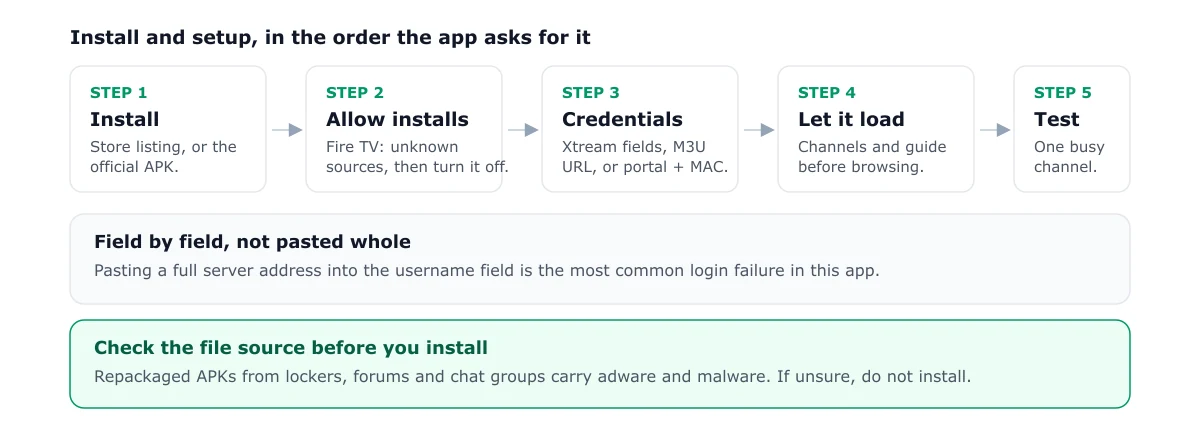
On Android TV, search for XCIPTV in the store and install the listing for TV if one is available. If the store does not list it, use the developer’s official site for the APK.
On Fire TV, the app is usually installed by sideloading. The Fire TV setup guide covers enabling installs from unknown sources and using Downloader. Turn that setting off again once the install is finished.
Whichever route you take, check the file source first. Repackaged APKs from file lockers, forums or chat groups can contain malware or adware that is difficult to remove. If you are unsure whether a file is genuine, do not install it.
Add your credentials
Enter the details your provider sent, in the fields the app asks for:
- Xtream Codes. Server address, username and password, each in its own field. Do not paste the whole address into the username field. The Xtream Codes explainer explains each field.
- M3U. A single playlist URL. Add a username or password only if your provider specified them.
- Portal and MAC. A portal address and a device ID, entered exactly as given.
If the app reports a login failure, re-enter the details one at a time and check for typing errors before contacting your provider.
Playback settings that matter
Most playback problems come from the connection or the source, not from a setting. If a channel stalls, test one busy channel first, then change one player setting at a time and retest. The buffering guide lists the order to test in.
Known rough edges
- Remote focus. On some Android TV and Fire TV layouts, the focus can get stuck on a menu item. Restarting the app usually clears it.
- Guide refresh. If the guide is empty, refresh it once and wait a few minutes. The EPG guide explains the causes.
- Repackaged APKs. As above, install only from the developer’s own listing or site.
Where XCIPTV fits
For a side-by-side view of XCIPTV and other players, see the player guide. If you use Fire TV, the sideloading steps apply here too. For an overview of how IPTV works, see what IPTV is.
Frequently asked questions
What is XCIPTV?
XCIPTV is an IPTV player app. It plays the playlist or server details that you enter, and it organises the channels and guide. It does not supply channels or subscriptions.
Why is the XCIPTV app disabled on my Fire Stick?
Amazon's platform can block or disable sideloaded apps, and some app versions are restricted on newer Fire OS releases. Check that you are using the current official version, and check the Fire TV setup guide for the settings that affect sideloaded apps.
Is XCIPTV safe to install?
Install it only from the developer's listing or official site. Avoid copies on file lockers or forums, since repackaged APKs can contain malware or adware. Remove the app if you no longer use it.