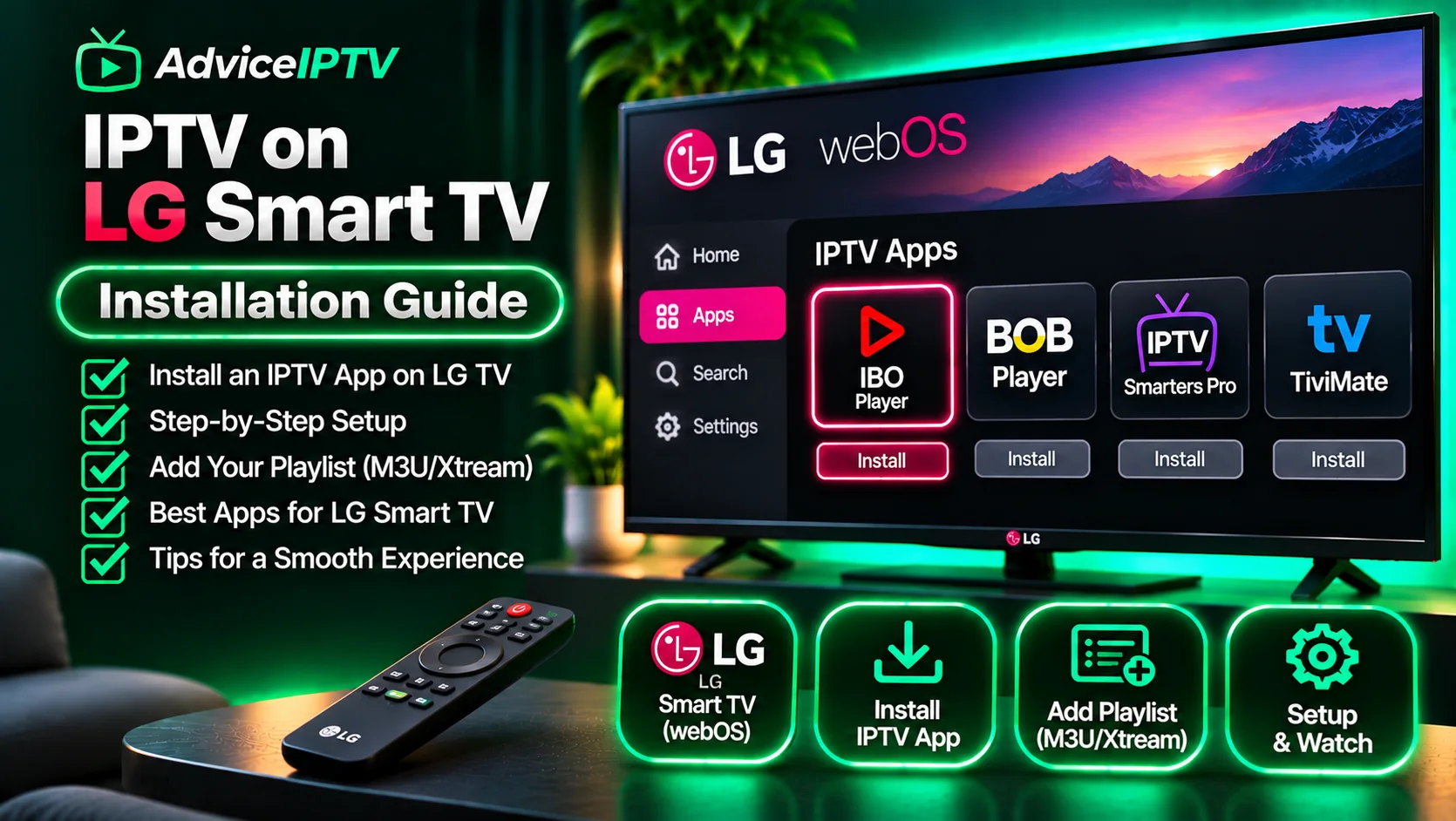
A smart TV is the fastest IPTV setup that exists. There is no extra box, no second remote, no HDMI switching, and no separate power supply to fail. Install an app, enter credentials, watch television.
It is also the most restrictive platform in this market, and being honest about the trade-off is more useful than pretending one answer fits every living room.
What the built-in stores allow
| Platform | Store | Sideloading | Realistic player count |
|---|---|---|---|
| LG webOS | LG Content Store | No | Small, region-dependent |
| Samsung Tizen | Samsung Apps | No | Small, region-dependent |
| Android TV / Google TV | Google Play | Yes | Large |
| Fire OS | Amazon Appstore | Yes | Large |
Note that Android TV is a genuinely different situation: a Sony or TCL set running Google TV has Google Play and therefore the same player ecosystem as a streaming stick. The restriction applies to LG’s webOS and Samsung’s Tizen, which are closed platforms with curated catalogues.
Step 1 — Search before you buy anything
Open your television’s app store and search for two or three player names your provider documents: IPTV Smarters, TiviMate, XCIPTV, or a provider-specific app.
Three possible outcomes:
- A player is present — you can probably complete setup on the TV itself.
- Nothing is present — you need a streaming stick, or a provider that documents a TV-native app.
- An unofficial-looking clone is present — avoid it. Repackaged apps in TV stores are a recurring source of credential theft.
Do this before you pay for a subscription. It is the single most common avoidable mistake in this category.
Step 2 — Install and enter credentials
The flow is uniform across webOS and Tizen:
- Open the store, install the player, launch it.
- Choose the login type — Xtream Codes (server URL, username, password) or M3U URL.
- Enter them using the TV remote. This is the slowest part of the process; if your TV supports a paired keyboard or the vendor’s phone-remote app, use it.
- Let the guide import. On a television, this is usually faster than on a budget stick because the SoC is better cooled and the player is often simpler.
Step 3 — Understand what built-in players usually lack
This is the part that guides skip. A TV-native player typically offers:
- Live channels and a basic guide
- Favourites
- A simple VOD list
And typically does not offer:
- Recording or timeshift
- Catch-up archive browsing
- Multiple playlist profiles
- Advanced EPG mapping and editing
- Per-channel audio track selection
If any of those matter to you, the television’s built-in app will feel like a demo after a month. That is the honest reason many readers end up adding a stick even when the TV app works.
The failures specific to smart TVs
App disappears after a firmware update
LG and Samsung both prune their catalogues. A player removed from the store usually cannot be reinstalled, even if it is still on your TV. Re-check availability before assuming a fault.
Playback stutters on 4K channels only
Television decoders are generally capable, but older sets handle high-bitrate HEVC poorly. Drop to the HD feed for that channel; a 4K badge on a 2018 panel is not a promise.
Audio out of sync on one channel
Common with certain audio codecs on Tizen. Switch the audio track in the player, or set audio output to PCM rather than pass-through and let the TV handle it.
Guide empty after import
Same cause as everywhere: a missing or malformed EPG URL. Confirm your provider supplied a separate guide address.
App freezes when browsing a large list
Memory pressure on the TV’s app sandbox. Build a favourites list of twenty channels and stop browsing forty thousand. This is the single most effective fix on smart TV platforms.
When to add hardware instead
Buy a $35 stick if any of these are true:
- No compatible player exists in your TV’s store.
- Your TV is more than about five years old and has stopped receiving app updates.
- You want recording, catch-up browsing, or multiple profiles.
- The TV app freezes under normal use.
Do not buy hardware if the built-in app works and you only watch live channels with a favourites list. The setup you already have is the better one.
The one thing worth trying first
Before adding a device, test the TV’s built-in player during peak hours with the channels you actually watch. If it holds for a full evening, you are done — and you have avoided a purchase, a second remote, and an HDMI port.
If it does not hold, the fault is usually the app rather than the subscription, and our buffering guide covers the diagnosis order. For platform-by-platform comparison, see the device hub.
Frequently asked questions
Can you install IPTV Smarters on a Samsung TV?
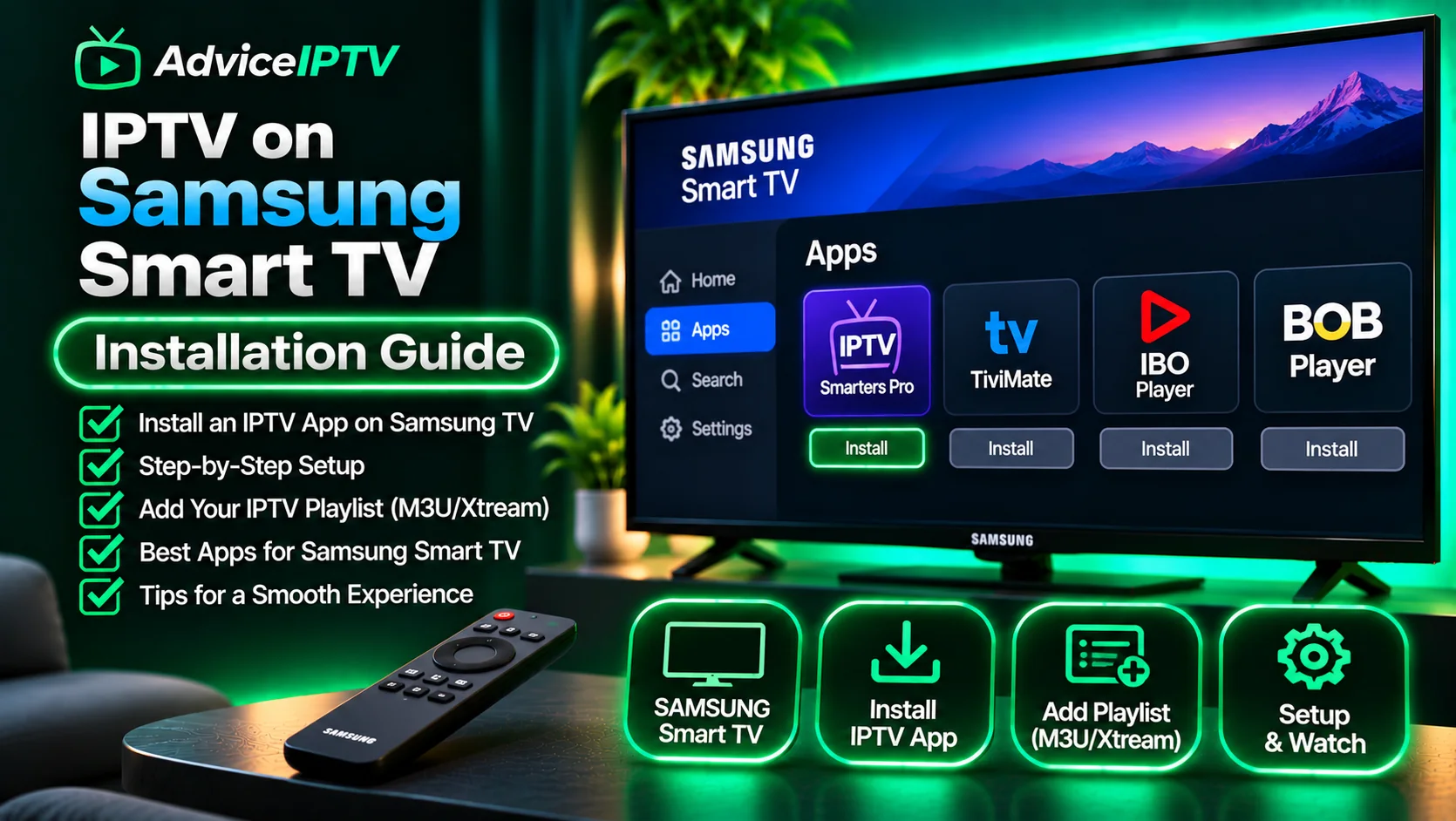
Sometimes, depending on region and model year. Samsung's Tizen store carries a limited and shifting set of IPTV players, and availability differs by country. Search the TV's own app store for the specific name rather than trusting a guide written for another market.
Why is the picture better on my TV's built-in app than on a stick?
Usually upscaling and picture processing. Televisions apply their own scaling and motion processing to internal sources differently than to HDMI input, and the internal app can hand the panel a more direct signal path. It is a real difference, and it is the main argument for using the built-in app if it works.
Do smart TVs support M3U playlists natively?
No. The television has no system-level playlist support; the app you install determines the formats. Some webOS and Tizen players accept only Xtream Codes credentials, which is worth checking before you buy a subscription.
Is a streaming stick better than a smart TV for IPTV?
For flexibility, yes: a Fire TV or Android TV device has far more player options, supports sideloading, and receives updates after the television stops getting new apps. For simplicity, the TV wins — there is nothing to plug in or power separately.