Android TV and Google TV are among the most capable platforms for IPTV. They run a full app store and allow APK installs, so you have more choice of player than on most sticks. The cost is that cheap boxes ship with little storage and memory, and that is where most problems start. This guide covers installing a player, adding your playlist, and tuning a box so it keeps working.
Android TV, Google TV and a phone are not the same
Android TV and Google TV are the operating systems built for a television. They use a remote, a television-style home screen, and a television app store. A phone also runs Android, but its interface and app versions are designed for touch. A player built for a phone may not work well with a remote. When you search the store, choose the TV version of the player where it exists, and check that the listing says it supports Android TV.
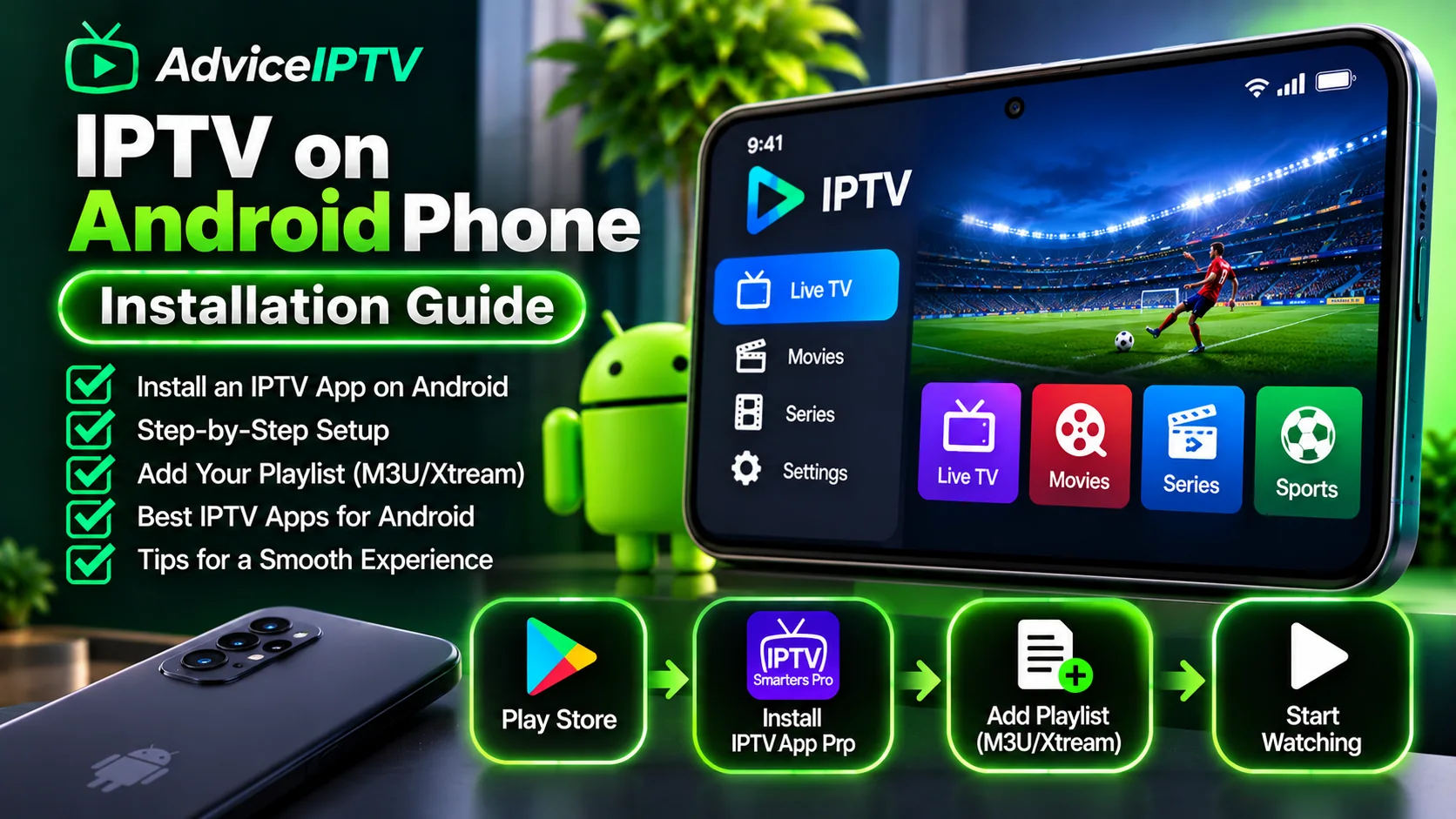
Install from the Play Store (the recommended route)
On a box with the Play Store, search for the player, open the listing marked for TV, and install it. This is the safest route because the store checks listings and updates the app automatically. If your box has no Play Store, the player may only be available as an APK download. That is covered in the next section.
Sideload with Downloader, done safely
Some players are only available as a direct download. On Android TV, the Downloader app lets you enter a URL and install an APK. Follow these rules:
- Use the APK from the developer’s own website, not a file locker, a forum post or a link shared in a group chat. Repackaged APKs are a common route for malware and for adware that is hard to remove.
- Check the file name and version against the developer’s site. A mismatch is a warning sign.
- Turn on installs from unknown sources only for the app you are installing, then turn it off again.
- Remove any app you no longer use, so a sideloaded file does not sit on the box indefinitely.
The Fire TV setup guide covers the same sideloading steps on Amazon’s platform, and the player guide compares the players most people install.
Add your credentials: Xtream, M3U or portal
Your provider will have sent one of three kinds of details:
- Xtream Codes. A server address, a username and a password, entered in separate fields. Do not paste the whole address into the username field. The Xtream Codes explainer explains each field.
- M3U. A single playlist URL. Only add a username or password if your provider specified them.
- Portal plus MAC address. Some players use a portal address and a device ID instead. Enter the details exactly as given, and check that the device ID matches the one the provider registered.
If the player reports an authorisation or login failure, the usual cause is a mistyped field, not a broken service. Re-enter the details one at a time before contacting your provider.
Import the guide and organise favourites
After the playlist loads, the guide is a separate step. Most players fetch the programme schedule from a guide source that is either supplied with the playlist or added in the settings. Give it a few minutes after you add the playlist. If the guide remains empty, the EPG guide explains how to check the source.
On a large lineup, favourites matter more than anything else. Mark the channels you watch most, reorder the groups you use, and hide the ones you never open. A shorter list makes the app quicker to open and easier to navigate with a remote. For playlist formats in more detail, see the M3U playlist explainer.
Hardware decoding on cheap boxes
Hardware decoding lets the chip handle video, which uses far less processing than software decoding. Many players let you choose between hardware and software decoding. On a cheap box, start with the player’s default. If a channel shows picture artefacts or freezes, try the other setting and test the same channel again. Change one setting at a time, so you know which one made the difference.
A stronger device with a dedicated media chip will generally handle high-bitrate channels better than a budget box, so if you find channels stuttering on one device but not another, the hardware is the likely reason.
Storage headroom on an 8 GB box
Many budget boxes have 8 GB of storage, and the operating system and preinstalled apps use a large share of it. When storage is nearly full, apps slow down, updates fail, and the player can stop responding. Keep at least a few gigabytes free. Remove apps you do not use, clear cache for apps that have grown large, and avoid storing downloaded files on the box.
Five fixes for the first week
- Restart the box after installing. This clears memory left by the install and lets the player start cleanly.
- Check free storage. Remove unused apps before changing anything else.
- Re-enter the credentials exactly. Most login failures come from a typing error.
- Refresh the guide once. Wait a few minutes and check the schedule before assuming the guide is broken.
- Test one busy channel. If it stalls, the buffering guide lists the order to test in.
Where to go next
For the Amazon equivalent, see IPTV on Fire TV Stick. For a general introduction to how IPTV works, see what IPTV is.
Frequently asked questions
Is Android TV the same as a phone running Android?
No. Android TV and Google TV are designed for a television, with remote-friendly menus and a television app store. A phone runs Android in a different interface, and an app that works on a phone may not be built for the TV remote. Install the TV version of a player where one is listed.
Do I need to sideload an IPTV app on Android TV?
Often not. Many players are on the Play Store for Android TV, which is the safest route. Sideloading is only needed for an app that is not listed. When you do sideload, use the developer's official site and check the file's source.
Why does my cheap Android TV box keep crashing?
Low memory and full storage are the usual causes. Remove apps you do not use, clear caches, and restart the box. A player with a heavy guide can also use a lot of memory, so reduce the number of favourites and guide sources before trying a different player.