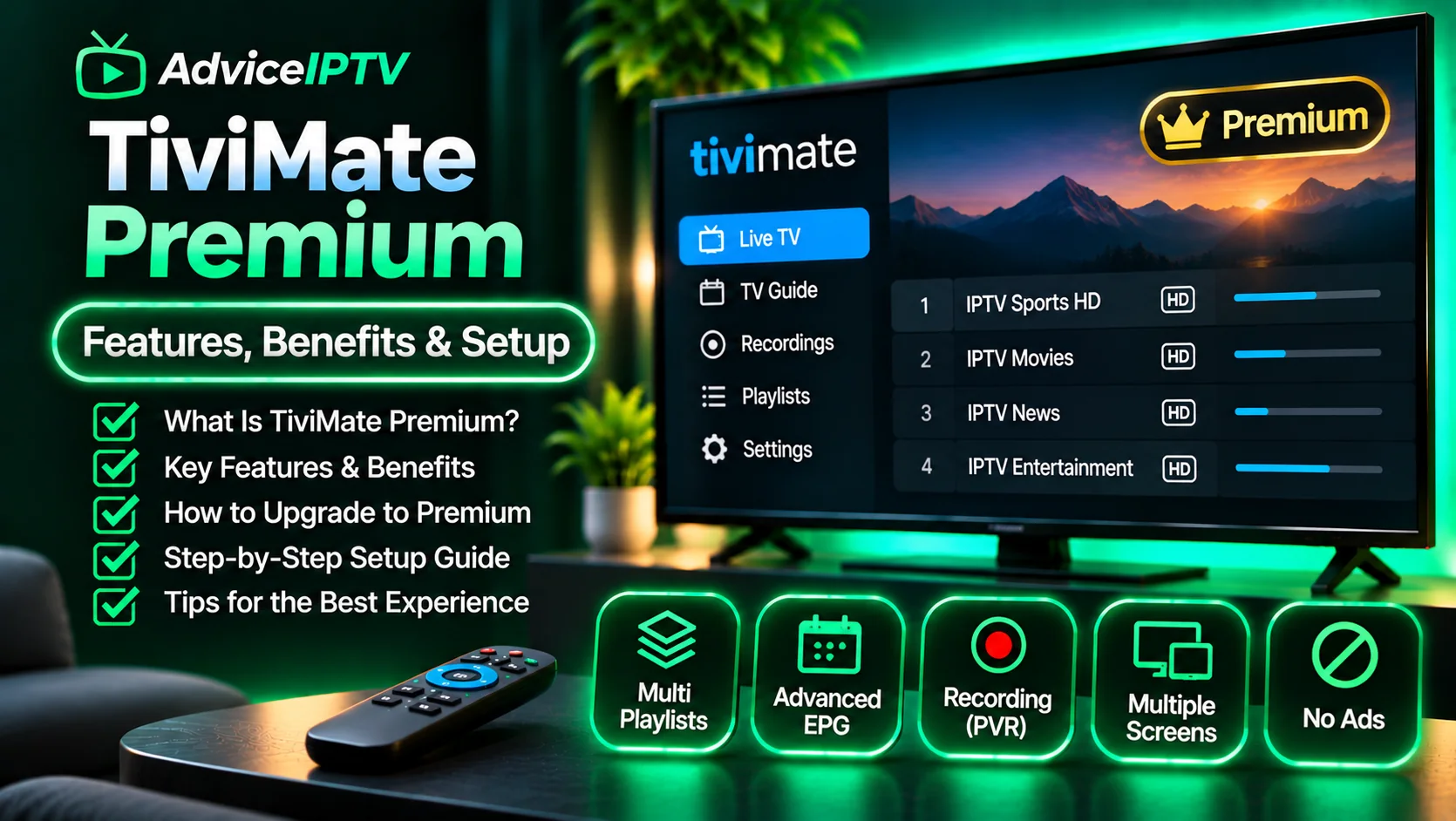
TiviMate is one of the most widely used IPTV players on Android TV and Fire TV. It is a player only: you supply the playlist, and the app organises it. This guide covers installing it, adding a playlist, getting the guide to load, and the settings worth changing in the first week.
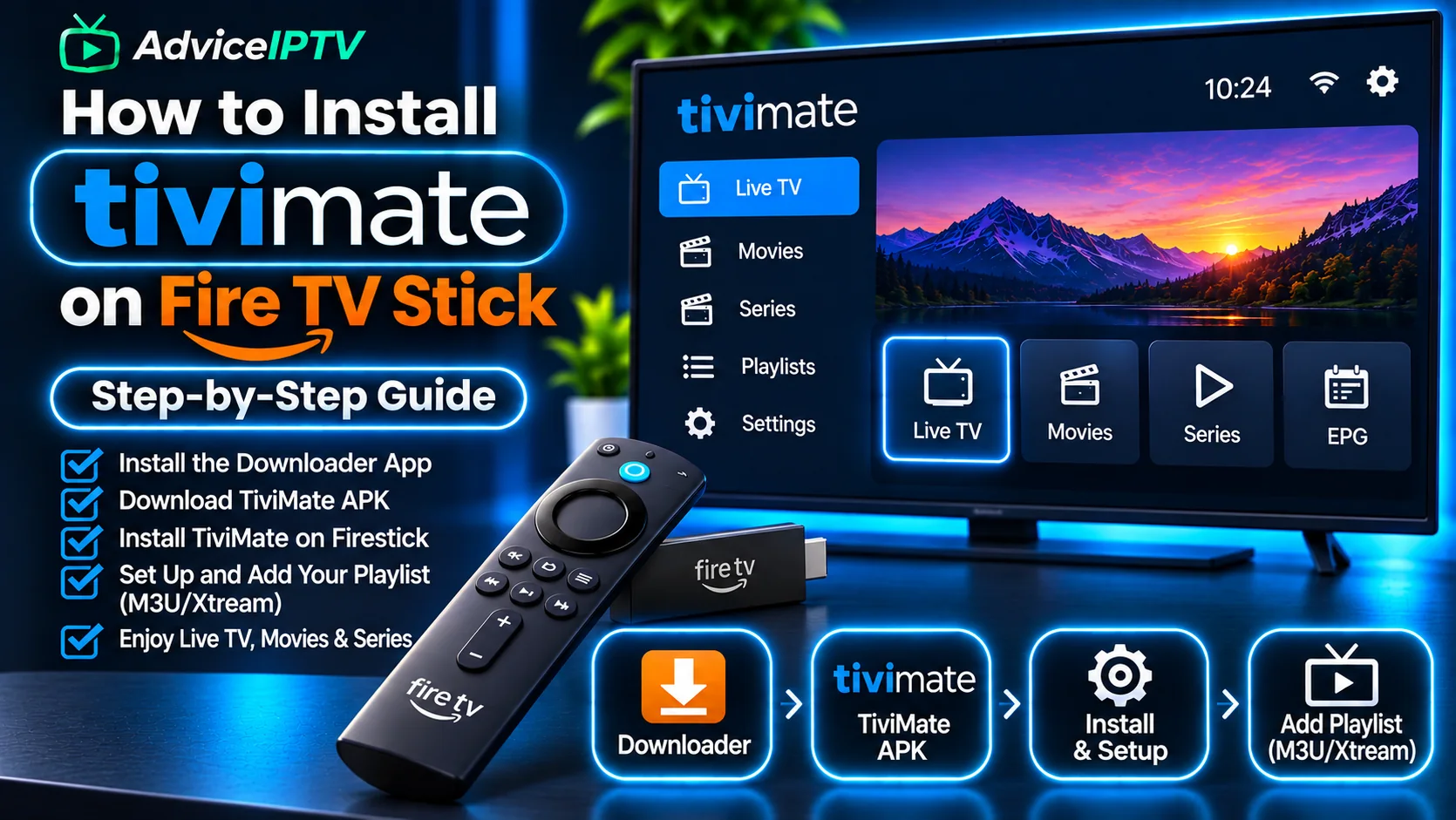
Install TiviMate
The official site lists two routes:
- Google Play. On Android TV or Google TV, search for TiviMate in the Play Store and install it. This is the simplest route and updates automatically.
- Direct APK. On a device without the Play Store, install the APK from tivimate.com/apk. Only use the APK from the official site, because copies on other sites are not checked.
The official site presents TiviMate as an Android TV app. If you are on Fire TV, the sideloading steps are in the Fire TV setup guide.
Add a playlist: Xtream or M3U
When you first open TiviMate, it asks you to add a playlist. Choose the type your provider gave you:
- Xtream Codes. Enter the server address, username and password in their separate fields. Do not paste the whole address into the username field. The Xtream Codes explainer shows what each field is for.
- M3U. Paste the playlist URL. Only add a username or password if your provider specified them.
Save the playlist and wait for the channel list to load. A large playlist can take a few minutes the first time.
Make the guide populate
This is the step most setup guides skip, and it is the cause of most empty-guide reports. The channel list and the guide are separate. After the playlist loads, TiviMate must also fetch the EPG, the program schedule, and the guide stays blank until it has done so.
Open the playlist settings and check that a guide source is set. If your provider supplies a guide URL, use it. Then refresh the guide and wait. If it stays empty, the EPG guide explains how to check the source.
Favourites and channel order
A large lineup is hard to navigate without favourites. Mark the channels you watch most as favourites so they appear at the top. Reorder the groups you use, and hide the groups you never open. These changes are local to the app and do not affect the provider’s feed, so they are safe to experiment with.
Premium: what the upgrade adds
The official site states that any paid subscription or premium upgrade “unlocks application features only” and does not include channels. Before paying, check the current feature list on tivimate.com. Do not buy a premium upgrade on the expectation that it fixes a playlist or provider problem, because it does not change either.
Check playback before changing settings
Before you adjust anything, test one busy channel and note whether it stalls. If it does, change one setting at a time and test again, rather than changing several at once. The buffering diagnosis covers the order to test in, and it applies to any player, including TiviMate.
Where TiviMate fits
TiviMate is a good choice on Android TV and Fire TV for a viewer who wants a polished guide and favourites. For a side-by-side comparison with other players, see the player guide. For an overview of how the playlist and player fit together, see what IPTV is.
Frequently asked questions
Is TiviMate free?
TiviMate can be installed and used at no cost, with a premium upgrade available. The premium upgrade unlocks application features only and does not include any channels. Check the current feature list on the official site before you decide, because the free and paid features can change.
Can I install TiviMate on Fire TV?
The official site offers a direct APK download, which can be used on devices without the Play Store. Use only the APK from tivimate.com, not a copy from another site. The Fire TV setup guide covers sideloading in general.
Why is my TiviMate guide empty?
The guide needs a valid EPG source, and it takes a few minutes to load after the playlist is added. Check that the playlist provides a guide and that you have refreshed it. The EPG guide explainer covers the remaining causes.
Does TiviMate work on iPhone or Apple TV?
The official site presents TiviMate as an Android TV app, and it does not list an iOS or Apple TV version. Use a player listed for Apple devices in the Apple TV guide instead.