Buffering is the wrong word for about six different faults. It describes a symptom — playback pausing to refill the buffer — without indicating where the failure occurred. The only reliable approach is to bisect the path, cheapest test first.
Step 0 — Classify before you fix
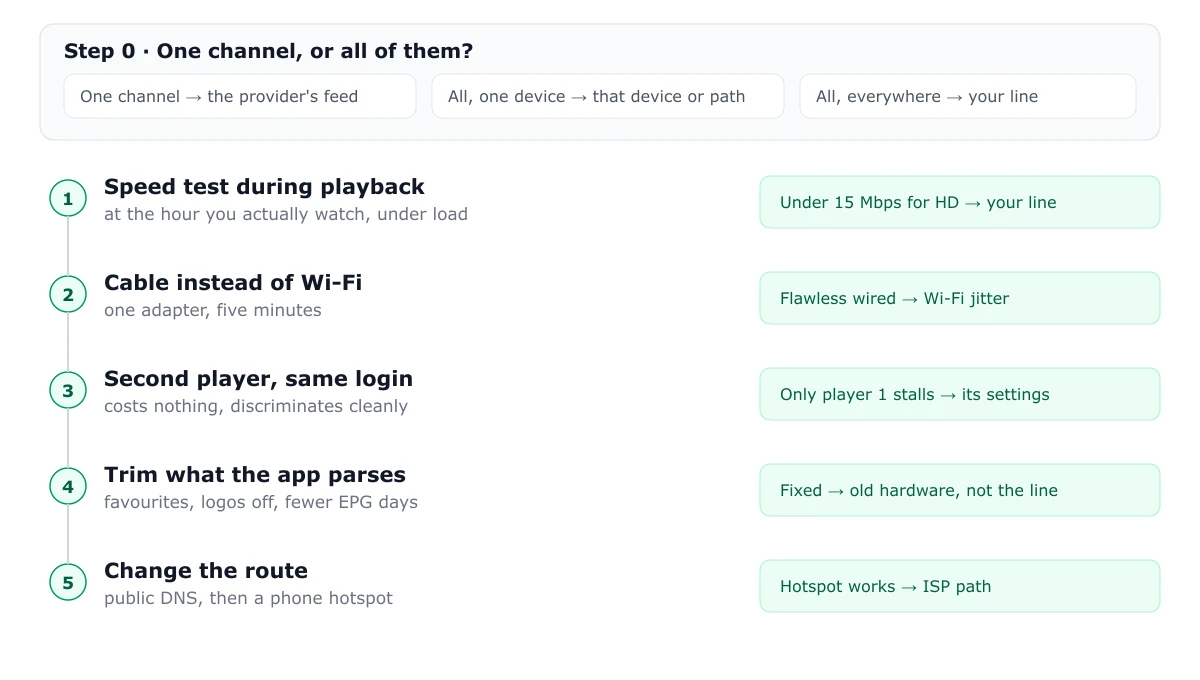
One question decides the direction of everything else:
Does one channel stutter, or all of them?
- One channel → source-side. The provider’s feed for that channel.
- All channels, one device → that device or its network path.
- All channels, all devices → your internet connection, or the provider’s infrastructure.
Readers routinely start by reinstalling apps and end by buying a new router. Classification prevents both.
Step 1 — Test the connection under load
Run a speed test while the stream is playing, at the hour you actually watch. A midday result tells you nothing about 20:40 on a Saturday.
| Streaming quality | Sustained requirement | Comfortable headroom |
|---|---|---|
| SD (480p) | 5 Mbps | 10 Mbps |
| HD (1080p) | 15 Mbps | 25 Mbps |
| 4K (UHD) | 25 Mbps | 40 Mbps |
The number that matters is the minimum during the test, not the peak. A connection dipping to 4 Mbps while the chart shows 200 Mbps will buffer continuously.
Step 2 — Remove Wi-Fi from the equation
This is the highest-yield test in the entire sequence, and it takes one cable.
- Fire TV Sticks support wired Ethernet through Amazon’s official adapter.
- Android TV boxes usually have a port.
- If the television is far from the router, a pair of powerline adapters is a reasonable compromise.
If playback is flawless on a cable and broken on Wi-Fi, you have found the cause. The fix is not a new router; it is a $20 adapter. Wi-Fi adds jitter, and live IPTV is far less tolerant of jitter than on-demand video.
Two Wi-Fi details worth checking before buying anything:
- Band. 5 GHz has less interference and more capacity than 2.4 GHz at short range. Move the device or the access point before replacing hardware.
- Channel width. Auto-selecting a congested channel is common in apartment buildings. A manual scan and a fixed channel often resolves nightly stutter that appears only when neighbours are streaming.
Step 3 — Isolate the player
Install a second player and load the same credentials. This costs nothing and discriminates cleanly:
- Second player is fine → the first player is the problem: decoding, buffer, or guide overhead.
- Both stutter → not the player.
Two player settings are worth knowing, because they explain most “this app is broken” reports:
- Hardware decoding. If it is off, the device decodes in software and stutters at bitrates it could otherwise handle. Turn it on.
- Buffer size. Larger buffers tolerate jitter but slow channel changes. If the device has limited RAM, an oversized buffer can cause its own stalls.
Step 4 — Reduce the workload
A 60,000-channel lineup is a lot to parse and keep resident, especially on a Fire TV Stick Lite or an older smart TV.
- Build a favourites list of 20 channels.
- Disable channel logos if the player offers it.
- Trim the EPG to fewer days.
This routinely turns an unusable budget device into an acceptable one. It is not a workaround for a network fault, but it is a real fix for interface-related stalls that get mislabelled as buffering.
Step 5 — Check DNS and routing
If everything above passes and only IPTV suffers, look at the path to the provider.
- Switch the device’s DNS to a public resolver and retest.
- Try a phone hotspot — a different network path with different peering.
- If the hotspot fixes it, the problem is your ISP’s route or a filter, not the subscription.
This is also the one scenario where a VPN can genuinely help: if your ISP throttles sustained video traffic, an encrypted tunnel bypasses the heuristic. Test without one first so you can measure the difference.
Step 6 — Report it properly
If the fault is source-side, make the report easy to act on. Include:
- Channel names and times, in the provider’s timezone
- Device and player version
- Whether a second device on a different network shows the same fault
- Whether the same channel fails at a different hour
A report with timestamps gets fixed. “It buffers” does not.
The upgrades ranked by effect
| Change | Cost | Effect on stability |
|---|---|---|
| Wired Ethernet adapter | $20 | Very large |
| Move to 5 GHz Wi-Fi | $0 | Large |
| Enable hardware decoding | $0 | Large |
| Favourites list instead of full lineup | $0 | Moderate |
| New router | $80 – $200 | Moderate, situational |
| VPN | $3 – $9/mo | Small, situational |
| New streaming device | $35 – $180 | Small, unless the old one is very old |
Note where the expensive options sit. In most households, the $20 adapter and two free settings changes solve the problem the new router was going to be bought for.
Related
- Login errors rather than playback: failed to authorize
- Guide performance: the EPG guide
- Player choice by decoding behaviour: best IPTV players
Frequently asked questions
Why does IPTV buffer at night but not during the day?
Contention. Both your ISP's local segment and the provider's servers are busiest in prime time. If the fault only appears after 19:00, treat it as a capacity problem until proven otherwise, and test a wired connection before blaming the subscription.
Is 100 Mbps enough for IPTV?
Plenty, in isolation. A single HD stream needs about 15 Mbps and a 4K stream about 25 Mbps. What matters is stability under load: a 100 Mbps line that collapses to 3 Mbps when the household is streaming elsewhere is worse than a steady 40 Mbps line.
Does a VPN fix buffering?
Occasionally, and only when the cause is ISP throttling of sustained video traffic or a routing problem to the provider. It adds latency and a new failure point, so test without one first to establish a baseline.
Why does one channel buffer constantly while others are fine?
That is a source-side problem. A single feed may be over-subscribed, transcoded poorly, or served from a struggling origin. No local change will fix it — test the same channel at a different hour, then report it to the provider with timestamps.