When IPTV stops working, the symptom tells you very little. The same blank screen can come from a wrong password, a Wi-Fi link that drops at night, a single dead channel or an app that has corrupted its own settings. Each of those has a different owner and a different fix, so the first job is to find the layer that is failing.
Three questions that sort the fault
Answer these in order. Each answer removes a group of causes.
- Does anything load, or is the channel list empty? If the list is empty, the fault is at login or in the playlist, not in playback.
- Do all channels fail, or only one? One channel means the provider’s feed for that channel. All channels means your device, your network or your account.
- Does a second player or a second device behave the same way? If it does, the fault sits upstream of the first app. If it works there, the first app or device is the problem.
Symptom-to-fix table
| Symptom | Most likely layer | First test | Detailed fix |
|---|---|---|---|
| Login rejected or “failed to authorize” | Credentials, account or connection limit | Close the player on every other device, then re-enter the three login fields exactly as issued | Failed to authorize in IPTV Smarters |
| Channel list is empty or never loads | Playlist or server URL | Confirm the playlist URL or server address matches the provider’s message | M3U playlists explained |
| Playlist worked, now fails | Expired or changed playlist | Check the account status and whether the playlist URL changed | Xtream codes explained |
| Every channel stutters or pauses | Connection under load or Wi-Fi | Test on a cable at the hour you watch | IPTV buffering diagnosis |
| One channel is black or stalls | Provider source for that channel | Try the same channel at a different hour, then report it with timestamps | Buffering diagnosis |
| Channels play but the guide is empty | EPG source or matching | Check the guide URL and the player’s guide settings | IPTV EPG guide |
| App crashes, forgets playlists or freezes on launch | App state or device memory | Test a second player; if it works, clear the app cache | Setup guides by device |
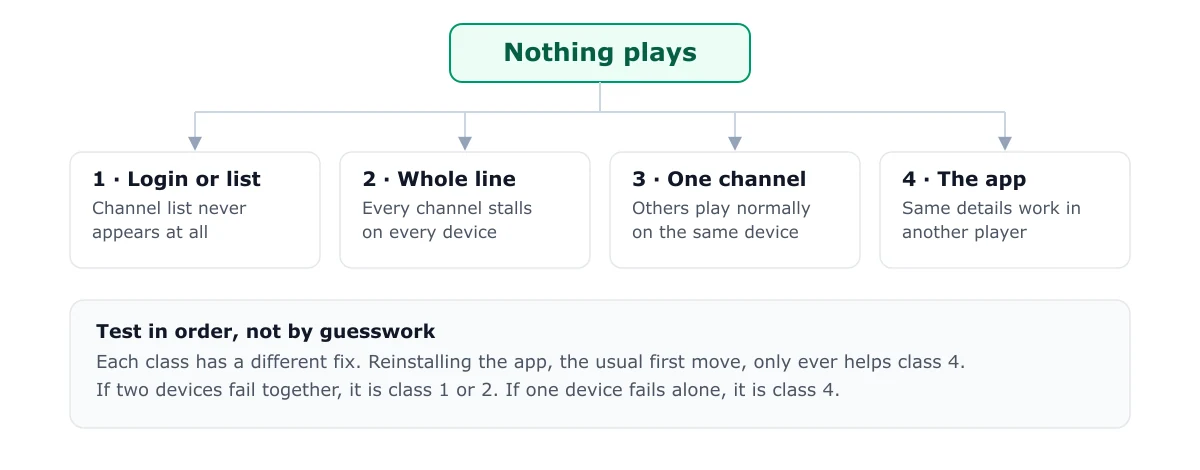
Class 1: Nothing loads at all
This class covers login, the playlist and the server address. Start here if the channel list never appears. The fault is almost always in a field that was typed or copied by hand, or in an account that has lapsed. Re-enter the details exactly as the provider issued them, then check the account before changing anything else.
Class 2: Channels load, playback stalls
If the list appears but playback pauses, freezes or shows a spinning icon, the stream is not arriving fast enough. The question is whether this happens on every channel or at certain hours. Test on a wired connection first, because a Wi-Fi fault looks identical to a provider fault from the screen.
Class 3: One channel fails, the others work
A single failing channel is not your network. The provider’s feed for that channel is interrupted, overloaded or has been withdrawn. Note the channel name and the time it failed. Changing your setup will not repair it, so do not spend time on it until the same channel fails at a second time.
Class 4: The app itself misbehaves
Crashes, forgotten playlists and frozen screens on launch point to the player or the device. Test with a second player. If the second player works, reinstall or clear the cache on the first, after noting your favourites so you can restore them.
When to contact the provider
Contact support when the failure is confined to the provider’s side: an account that shows as inactive, a single channel that fails across several devices, or a service-wide outage at the same hour. Include the channel names, the times in the provider’s timezone, the device and player version, and whether a second device on another network shows the same fault. Reports with those details get acted on.
Related guides
- Start with the overview: What is IPTV?
- Login and authorization errors: Failed to authorize
- Buffering and stalls: IPTV buffering diagnosis
- Login fields and server URLs: Xtream codes explained
Frequently asked questions
Why did IPTV stop working suddenly?
The most common causes are an expired or suspended subscription, a connection limit held by another device, or a playlist URL that changed on the provider's side. A sudden stop with no local change usually points to the account or the provider, not the device.
Is it my device or my provider?
Test a second player on the same device and the same player on a second device. If both work, the first combination is at fault. If one channel fails while the rest load, the provider's feed for that channel is the likely cause. If everything fails on every device and network, check the account first.
How long should I wait before contacting my provider?
Wait until you have run the three-question check and noted the result, usually a few minutes. Then contact support with the failing channel names, the times they failed and the device and player you used. A report with those details is acted on faster than a general complaint.
Will a VPN or a new router fix IPTV that is not working?
Rarely. A VPN is only worth testing when your ISP is restricting the connection, and a new router only helps when the local network is the failing layer. Identify the layer first, because both purchases are wasted on a credential or source fault.