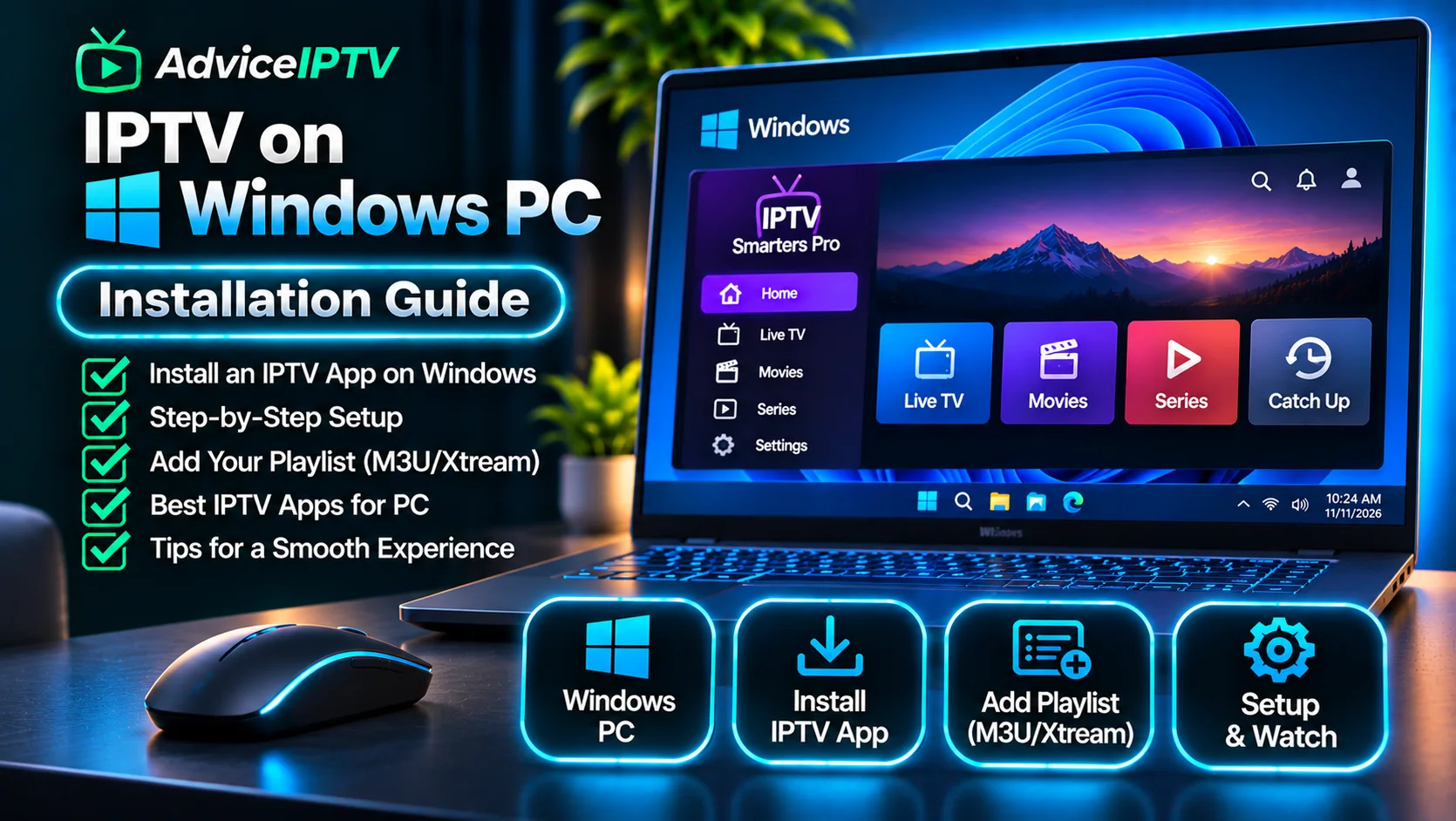
Watching IPTV on a PC or Mac is simple once you have the right app. The hard part is the download. Several sites and store listings use similar names for the same player, and some copies bundle software you did not ask for. Start with the genuine app, then sign in.
Can you watch IPTV on a laptop?
Yes, with caveats. A laptop is useful for checking your login, testing the guide and editing the playlist before you set up the TV. It is a weaker choice as a daily device. Sleep settings, updates and other programs can interrupt a stream, and a laptop’s screen is not where most people watch.
Getting the genuine app
The most reliable source is the developer’s own download page. On the official IPTV Smarters site, the Windows and macOS builds are listed under the Downloads section. At the time of writing, the page lists a Windows app and a macOS app, and it also says that copies of the site and of the app exist that sell subscriptions. Treat the developer’s page as the source of truth and compare anything else against it.
Some store listings also use the name. Before you install one, check the publisher name shown on the listing against the developer named on the official site. If they do not match, do not install it.
Spotting a repackaged build
A repackaged build usually looks like the real app but carries differences. Watch for these signs:
- The installer offers additional software, toolbars or browser extensions.
- The publisher name differs from the developer’s name on its own site.
- The download comes from a file-sharing site or a page that asks you to disable security warnings.
If you see any of these, stop. The real app does not need them.
Mac
The official site lists a macOS download, and the app runs on current versions of macOS. If you prefer a different player, VLC runs on macOS and plays M3U playlist URLs directly, which makes it a simple way to test a playlist. For a comparison of desktop players, see the player guide.
Signing in: Xtream or M3U
Desktop players accept the same two login types as other devices:
- Xtream Codes. Enter the server address, username and password in their separate fields. The Xtream Codes explainer covers what each field means.
- M3U URL. Paste the full playlist address into the playlist field. Only add a username or password if your provider told you to.
If the login is rejected, the cause is usually a mistyped field or a connection limit already in use. The authorization guide walks through both.
Making desktop playback comfortable
Desktop players are built for a mouse and keyboard, not a remote. Use full-screen mode for live channels, and check the keyboard shortcuts in the app’s help menu before relying on them. Keep the guide visible while you test, so you can see whether the EPG loads. If the picture stutters on a laptop but not on a TV, the Wi-Fi link is the likely cause, and the buffering diagnosis gives the order of tests.
For the Fire TV route, which allows sideloading, see the Fire TV setup guide. For a TV setup without extra hardware, see IPTV on a smart TV.
Frequently asked questions
Is there an IPTV app for Windows?
Yes. IPTV Smarters Pro lists a Windows app on its official download page, and VLC plays M3U playlist URLs on Windows. Confirm the app's source before installing, because third-party sites copy the name.
Can I watch IPTV on a Mac?
Yes. The official IPTV Smarters Pro site lists a macOS download, and VLC runs on macOS. Check the download page yourself rather than relying on a copy of it.
How do I know if a Windows IPTV app is safe?
Start from the developer's own website and compare the publisher name with what you see in the store or installer. If an installer offers unrelated software, cancel it, because repackaged builds often bundle extras.
Should I watch IPTV on a laptop every day?
Only if the laptop is dedicated to viewing. Laptops suspend, update and run other programs, which can interrupt a stream. A TV device or a streaming stick is a more reliable daily setup.