Bandwidth is the most common question in IPTV setup, and it is the one where published answers disagree the most. Some sites give a few megabits per second for HD, others give several times that. The reason is that they do not all measure the same thing. This guide explains the difference, gives planning figures for SD, HD and 4K, and shows how to test your connection while a stream is running.
Why the numbers disagree
A stream needs a steady flow of data for as long as you watch. That is its sustained bitrate. A speed test measures a short burst of throughput, usually under ideal conditions and at a quiet time of day. The two are not the same. A line that scores well on a speed test can still stall during the evening, when many people share the same connection. Figures that quote a speed-test result, rather than sustained bitrate, will overstate what you can use.
Channel bitrates also vary by provider, codec and picture quality. So any single figure is a planning guide, not a guarantee. The useful approach is to plan with a margin and then test your own line.
Planning figures for each quality
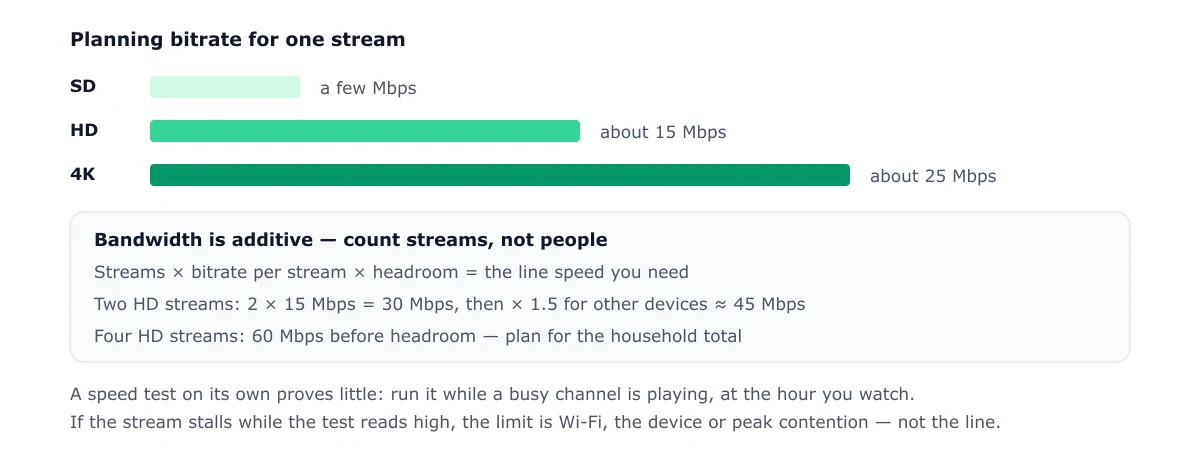
These are planning values for one stream:
| Quality | Planning bitrate per stream | Notes |
|---|---|---|
| SD | A few Mbps | Lower-quality channels can use less |
| HD | About 15 Mbps | Matches the figure on the what IPTV is page |
| 4K | About 25 Mbps | Matches the same page, and varies by channel |
Treat these as a starting point. Your provider’s channels may use less or more.
Adding up simultaneous streams
Bandwidth is additive. Each stream you watch at the same time needs its own share, and so does each other device using the connection. The arithmetic is:
- Streams × bitrate per stream × headroom = the line speed you need.
For example, two HD streams at 15 Mbps each need 30 Mbps before headroom. With a 1.5 multiplier for other devices and a margin for peaks, that is about 45 Mbps. Four HD streams need about 60 Mbps before headroom. A household with several people watching at once should plan for the total, not one stream.
The headroom multiplier is a judgement. A larger margin is safer on a shared line, especially in the evening.
Test while the stream runs
A speed test run on its own tells you little. To test properly:
- Play a busy channel on the device you actually use.
- Keep it playing, and run a speed test on another device connected to the same network.
- Repeat the test at the hour you normally watch, not only in the morning.
If the stream stalls while the speed test is high, the bottleneck is likely Wi-Fi, the device, or a shared line at peak time, not the headline speed of the connection.
Wi-Fi versus Ethernet
Wi-Fi often limits playback before the internet line does. Distance, walls, and interference from other networks can all reduce the speed the device actually gets. A wired Ethernet connection to the device, where you can run one, removes most of this variation. If you must use Wi-Fi, place the device close to the router and use the 5 GHz band where the device supports it.
When the speed is adequate but playback still stalls
If the line speed is adequate, the cause is often somewhere else: the stream format, the playlist, or the connection’s stability. The buffering guide covers that diagnosis step by step. For how the stream format changes the picture, see the HLS and TS guide, and for playlist load times, see the M3U playlist explainer.
Frequently asked questions
How much internet do I need for IPTV?
For HD, plan for about 15 Mbps per stream. For 4K, plan for about 25 Mbps per stream. Add headroom for other devices on the network, and for each extra stream you watch at the same time.
Why do the speed figures I see online differ?
Many figures do not say how they were measured, and some quote a speed-test result rather than the sustained bitrate a stream needs. Channel bitrates also vary by provider and codec. Treat any single number as a planning guide.
Is Wi-Fi or Ethernet better for IPTV?
A wired Ethernet connection is more consistent. Wi-Fi can lose speed through distance, walls and interference, even when the line is fast. If you must use Wi-Fi, place the device close to the router or use a 5 GHz band.